
Setup > Extra Type > Add Extra Type
Following information is required:
1. Extra Type Code
2. Extra Category
3. Name & Description
4. Guest Journey Touchpoints
5. Scheduling
6. Pricing & Billing Rule
7. Pictures
8. Restrictions
1. Extra Type Code
- Enter a Extra Type Code that matches the posting code in your PMS.
- If your PMS or connection source has no 2-way interface, just enter a code to help you identify the extra.
2. Category
-
Select a category from the dropdown that best describes the extra type.
3. Name & Description
- Enter Extra Type Name and description.
- Click AI Optimize feature to enhance the content. This will generate a revised version of the description in bullet point format, highlighting the key selling points of the extra based on the original text.
- You can add Name and Description in different languages (Select language code and click "Add Language")
- Click the AI Translate button to automatically generate a translated version of the description.
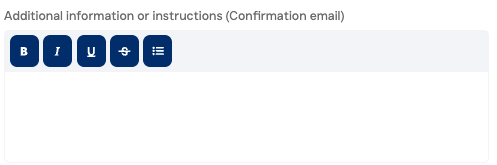
- "Additional Information to appear on confirmation email" can be used to provide further information on the confirmation email (for example opening times, table booking link, instructions, etc). Click Show Confirmation Email to add specific link or message.
4. Guest Journey Touchpoints
- Select where the extra should be offered throughout the guest journey. If no touchpoints are selected, the extra will be available across all touchpoints (subject to program availability).
5. Scheduling
- If this is selected, your guests will have the chance to schedule or specify a preference on the Check-Out page of the upgrade process.
- If the extra needs scheduling (specification of day and/or time), select YES.
- "With any time" if the service is available 24 hours or "With specific hours" if hours are limited.
- If you select "With specific hours", choose from when to when this extra can be scheduled and the time interval.
- Use "Custom Questions" to ask for any specific information from your guest (e.g. Flight number).
Frequently Asked Question: Where in the guest journey will guests answer custom questions, and how will hotels receive the responses?
Custom questions are presented to guests on the checkout page of the guest journey, after they have selected extras or room upgrades. The hotel will receive the guest’s responses via email notification.
6. Pricing & Billing Rule
- Sales Type: Extras can be (1) Instant Confirmed to client, (2) On request - fixed price (hotel needs to approve), or (3) On request - Bidding (hotel needs to approve).
- Billing Rule: Per Day, Per Day Per Person, Per Person, Per Unit or Per Reservation. (Examples for each at the bottom of the page)
- Price: Selling Price
-
Strike-Through Price: If the selling price is discounted, you can show a strike through Price
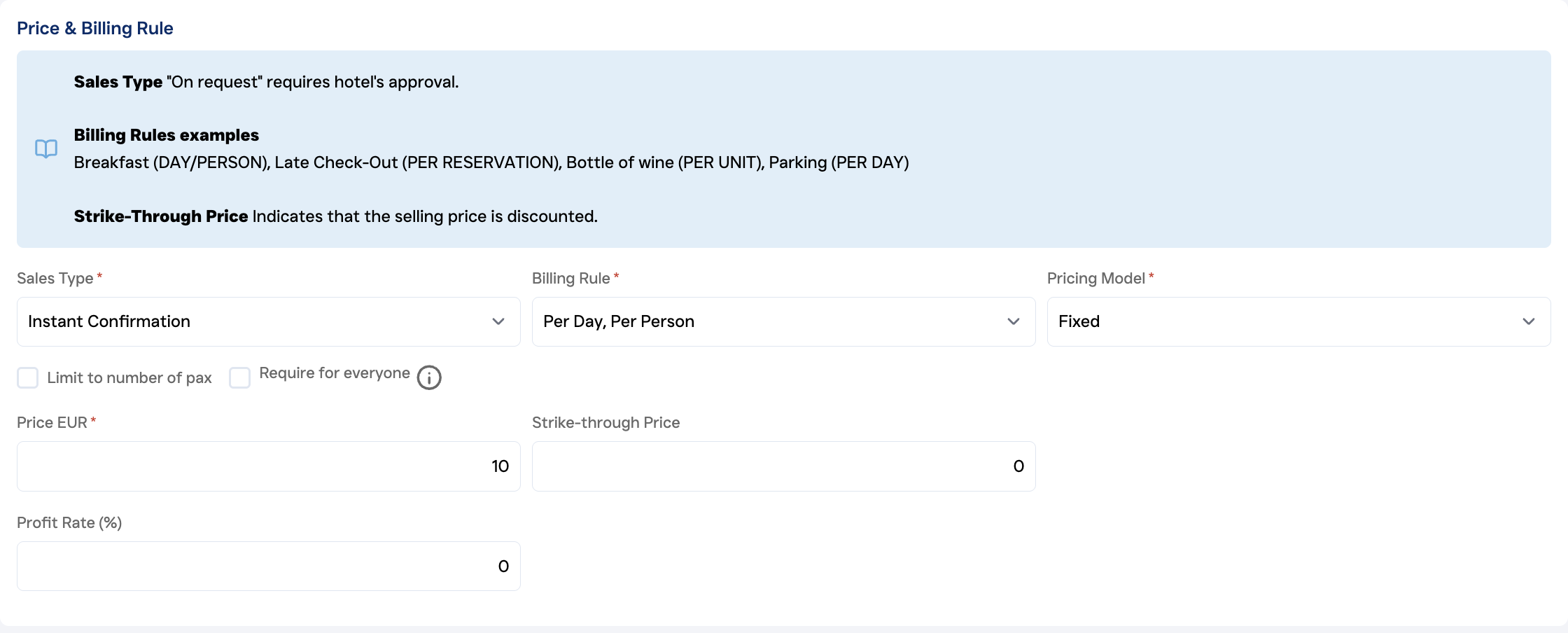
Examples of Billing Rules:
PER DAY: Parking, Extra Bed
PER DAY_PER PERSON: Breakfast
PER PERSON: Packages, Spa, Afternoon Tea
PER UNIT: Airport pickup, Bottle of wine
PER RESERVATION: Early Check-in, Late Check-out
7. Pictures
- Add at least one Hi-Def pictures.
- Sort the pictures by click and dragging them.
If you don't have a picture available, check out our our Gallery. (You need to have selected a Category on point 2 - Extra Name & Description)
8. Exclusions
See article "Restrictions for Extras".
Bulk Upload Extra Types
You can use the Bulk Upload feature to create multiple room types at once.
To do this, fill in the required details for each room type, including:
- PMS Code
- Name
- Category
- Sales Type (Instant Confirmation or On Request)
- Pricing Model (Fixed, Bidding, or Dynamic)
- Billing Rule
- Price
- Description
- Images
Once completed, click Add Extra Type to add another entry and repeat the process for all room types you want to include.
When all extra types have been added, click Save to upload them in bulk.
Want to copy an extra type to another hotel? Click the Copy to Other Hotels button, select all or the extra types you want to copy, and choose the destination hotels. This feature is only applicable for group or chain hotels.