
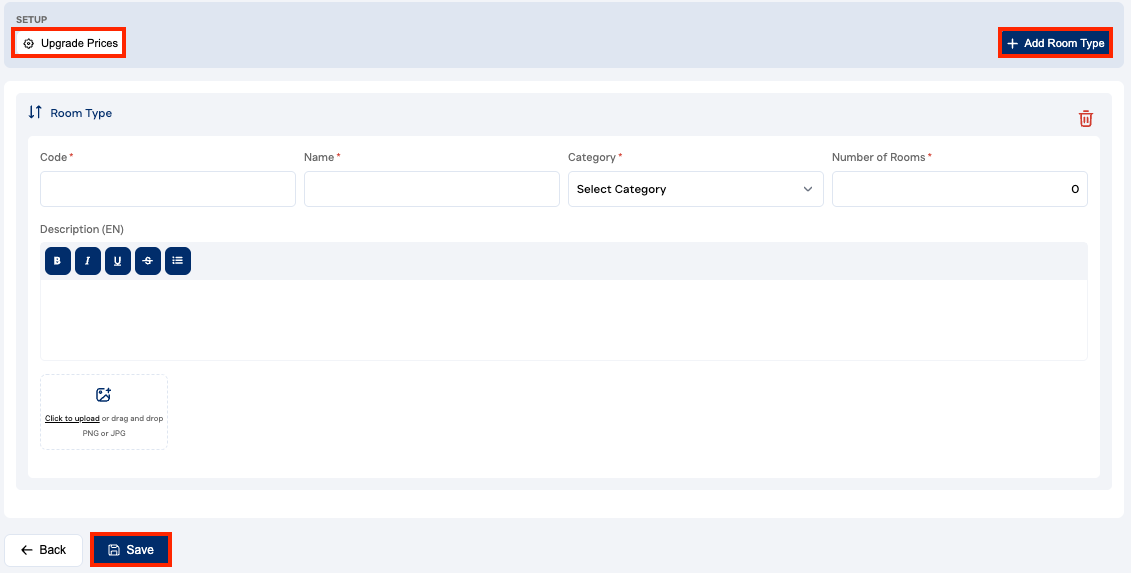
Setup > Room Types > Add Room Type
- Room Type PMS Code – Codes that can be found in your PMS.
- Room Description – A description for each room type (see Best Practices below).
- Room Name & Category - Select the option that best describes the room type.
- Room Occupancy - Number of guests allowed per room type.
- Room Pictures – Upload at least 4 pictures per room type (see Best Practices below).
Important Notes:
- Ensure all room types are created, even if no upgrades are offered to or from this room type.
- Sort your room types from the lowest to the highest category.
- Enter the Room Type Identifier identical to your PMS code.
- If you want to combine several PMS room types into one in UpsellGuru, add Secondary Room Type Codes. (For example, joining King and Twin Rooms into one main room category).
-
Enter the Room Type Name
-
You can add the Name in different languages (Select the language code and click "Add Language").
-
Select a Category from the dropdown which best describes the room type.
- Enter the Room Type description.
- You can add the Description in different languages (Select the language code and click "Add Language"). Click the AI Translate button to automatically generate a translated version of the description from one language to another.
- Click AI Optimize feature to improve the content automatically. The system will generate a revised version of the description in bullet point format, highlighting the key selling points of the room type based on the original text provided.
Best Practice/What AI Will Do:
- Keep the description concise, using bullet points for easier reading.
- List the main selling points of the room type instead of a generic description. Focus on the change in guest experience, such as a nicer view, club benefits, more space, or specific room features (e.g., balcony, high floor, separate living room).
- Use appealing and alluring words to highlight unique aspects of the room.
- Avoid mentioning generic items that apply to every room type (e.g., free Wi-Fi, alarm clock, hairdryer).
- Add the maximum occupancy for this room type. Several can be added (e.g. 3 adults + 0 child & 2 adults + 1 child). This ensures that room types are not offered for upgrades if they don't match the reservation’s total occupancy.
- Add as many high-definition (Hi-Def) room type pictures as possible (minimum 1024 pixels). After saving, you can sort the pictures.
Best Practice:
- Set a picture as the lead-in that captures the change in guest experience (e.g., extra living space, balcony).
- Add at least 4 high-quality room pictures to ensure visual appeal
Refer to this article on setting room up-selling prices for more detailed instructions.
Bulk Upload Room Types
You can use the Bulk Upload feature to create multiple room types at once. 
To do this, fill in the required details for each room type, including:
- Room code
- Room name
- Room category
- Number of rooms available
- Room description
- Images
Once completed, click Add Room Type to add another entry and repeat the process for all room types you want to include.
When all room types have been added, click Save to upload them in bulk and proceed with the upgrade pricing.
Setting up another hotel with similar room types? Click the Copy to Other Hotels button, select the room types you want to copy, and choose the destination hotels. This feature is only applicable for group or chain hotels.